How to organize Gmail without losing your mind.
A practical guide to labels, filters, and a simple cleanup routine — plus how Mango Pop can automate the whole system for you.
The manual way to organize Gmail.
These habits work in plain Gmail. Master them first, then decide which ones you want to hand off to Mango Pop.
Label by outcome, not topic
A label called 'Receipts 2026' is more useful than one called 'Amazon' because it tells you what to do next. Group mail by action: needs reply, waiting on, reference, or receipts.
Automate with filters
Gmail filters can label, archive, star, or forward mail based on sender or keywords. Set up filters for newsletters, invoices, and automated alerts so they never hit your inbox.
Unsubscribe before you organize
The fastest inbox reduction is removing mail you never read. Use Gmail's unsubscribe banner or a tool that respects List-Unsubscribe headers. Never unsubscribe from mail Gmail has marked as spam.
Archive, don't delete
Archiving keeps mail searchable without cluttering the inbox. Gmail's search is powerful enough that you can find archived threads in seconds when you need them.
Do a 20-minute weekly sweep
Set a recurring calendar block to archive, label, and unsubscribe. A small weekly habit prevents the inbox from becoming unmanageable.
Protect critical threads
Use Gmail labels or stars for must-keep mail like legal documents, travel confirmations, and receipts. Mango Pop's Super Save goes further by making protected threads immune to bulk archive or delete.
Quick-start cleanup routine
- 1Search
older_than:1yand archive anything you no longer need in your inbox. - 2Search
unsubscribeand unsubscribe from lists you no longer read. - 3Create five labels: Needs Reply, Waiting On, Receipts, Reference, and Archive.
- 4Build filters for recurring senders: newsletters → Someday/Read Later, invoices → Receipts, alerts → Reference.
- 5Schedule a 20-minute weekly sweep to keep the system current.
Let Mango Pop automate the organization.
Manual Gmail organization works, but it takes discipline. Mango Pop turns those habits into automatic streams, so your inbox stays organized without the weekly cleanup.
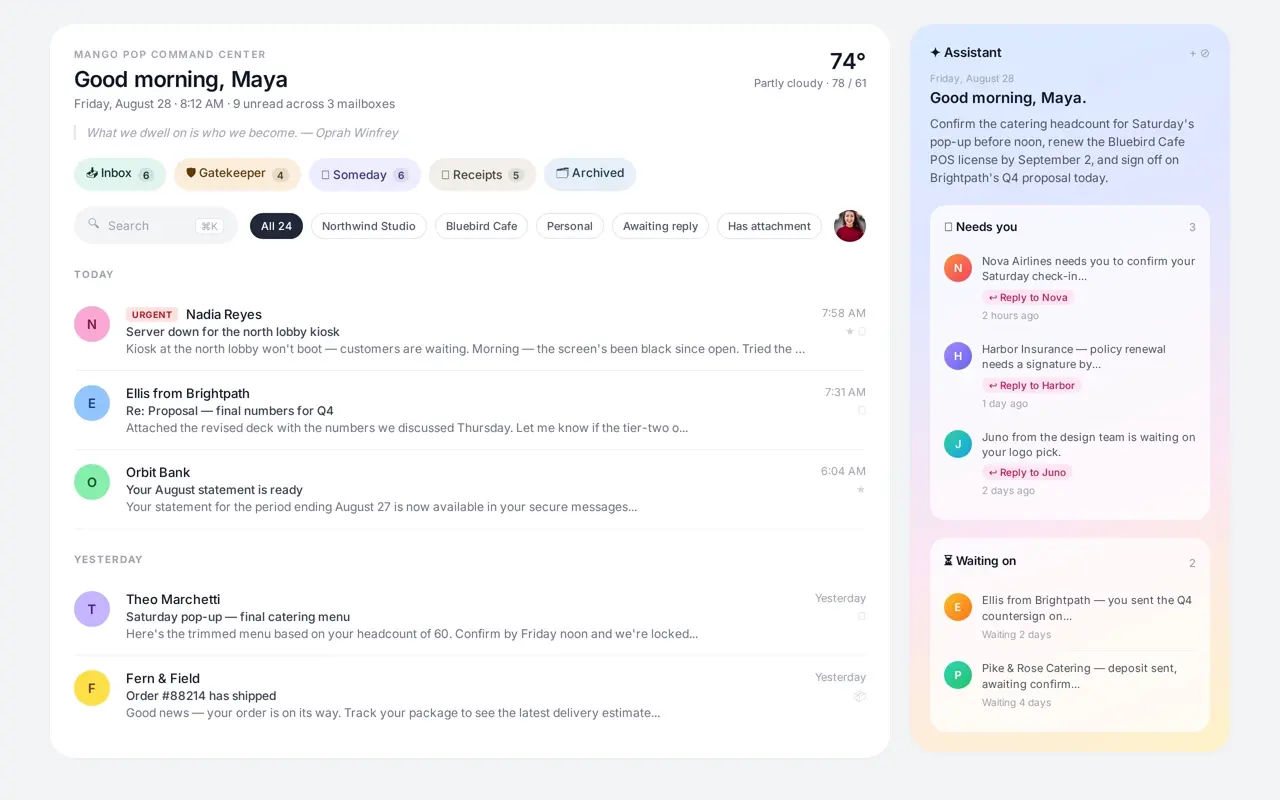
Gatekeeper screens every new sender
Instead of sorting mail yourself, Mango Pop holds unknown senders at the door. You say yes, no, or unsubscribe once, and that sender is routed correctly forever.
Four streams, zero manual filing
Approved mail lands in Inbox. Newsletters and low-priority updates go to Someday. Orders and shipments go to Receipts. The Gatekeeper holds strangers. No drag-and-drop required.
Receipts with package tracking
Mango Pop extracts schema.org tracking data from order emails and surfaces live shipment status in the Receipts stream.
AI drafts in your voice
The assistant studies your last sent messages and drafts replies that sound like you, with calendar-aware scheduling and standing instructions.
Manual Gmail vs. Mango Pop
| Task | Manual Gmail | Mango Pop |
|---|---|---|
| Screen new senders | Create filters one by one | Gatekeeper asks once, remembers forever |
| Sort newsletters | Labels + filters | Automatic Someday stream |
| File receipts | Manual labels or search | Automatic Receipts stream with tracking |
| Draft replies | Write every message | AI drafts in your voice |
| Protect critical mail | Stars / manual labels | Super Save blocks bulk actions |
Questions about organizing Gmail
What is the best way to organize Gmail?
Combine labels, filters, and a regular cleanup habit. Labels group mail by topic or project, filters sort mail automatically, and a weekly archive/unsubscribe pass keeps the inbox from refilling. Mango Pop adds an AI layer that screens senders and sorts mail into Inbox, Someday, and Receipts automatically.
How do I clean up thousands of emails in Gmail?
Start with search operators. Use `older_than:1y` to find ancient mail, `from:newsletter@example.com` to find one sender, and `has:attachment larger:5M` to find big files. Archive or delete in batches, then unsubscribe from anything you no longer read. Mango Pop's bulk actions and one-tap unsubscribe make this faster.
Should I delete or archive emails?
Archive almost everything. Deleting frees almost no space under Gmail's current storage model and risks losing something you need later. Archiving removes mail from the inbox while keeping it searchable. Only delete true junk, spam, and sensitive mail you are required to destroy.
How do Gmail labels work?
Labels are tags you can apply to any conversation. A single thread can carry multiple labels, which makes them more flexible than folders. Filters can apply labels automatically based on sender, subject, or keywords. Mango Pop uses labels behind the scenes for streams like Receipts and Super Saved, so the organization happens without manual tagging.
Can Mango Pop organize Gmail for me?
Yes. Mango Pop screens every new sender in Gatekeeper, sorts approved mail into Inbox, Someday, and Receipts, and drafts replies in your voice. It also extracts tasks, tracks packages, and protects critical threads with Super Save — all while syncing back to Gmail.
Stop organizing Gmail by hand.
Mango Pop screens senders, sorts mail into streams, and drafts replies for you — all inside your existing Gmail account. Free for one mailbox.